
Choose the right format
The reviewed build imports and exports JSON, Netscape HTTP Cookie File, semicolon-separated name=value pairs and Perl::LWP. Import detects the format from the contents. In Options, choose the format and output action for exports.
- JSON: a cookie-object array, or a single object on import. A useful default when you want to retain the cookie fields.
- Netscape: tab-separated records. Preserve the columns and any
#HttpOnly_prefixes. - name=value: a simple preference list such as
theme=dark; language=en. It omits the original scope, expiry and security attributes. - Perl::LWP: text with
Set-Cookie3:records, including the attributes available in that format.
1. Export a test snapshot
Open the target site and inspect the loaded cookie list. The default action in the reviewed build is Download + JSON: select the download icon in the popup toolbar. For clipboard output, open Options → Choose how to export cookies → Copy to clipboard. The format setting is below it.
Export uses the complete loaded list, including rows hidden by search. Review the result before sharing and remove unrelated information.
They can contain information that keeps an account signed in. Use made-up values for bug reports and keep real exports out of public repositories.
2. Choose a file or paste text
- Save your starting state, then open the matching website in a dedicated test profile.
- Select the upward-arrow Import control.
- Use the JSON / TXT file control to load a file, or paste its contents into the text area.
- Review the data, then select the green checkmark. Choosing a file only fills the form; submission writes the cookies.
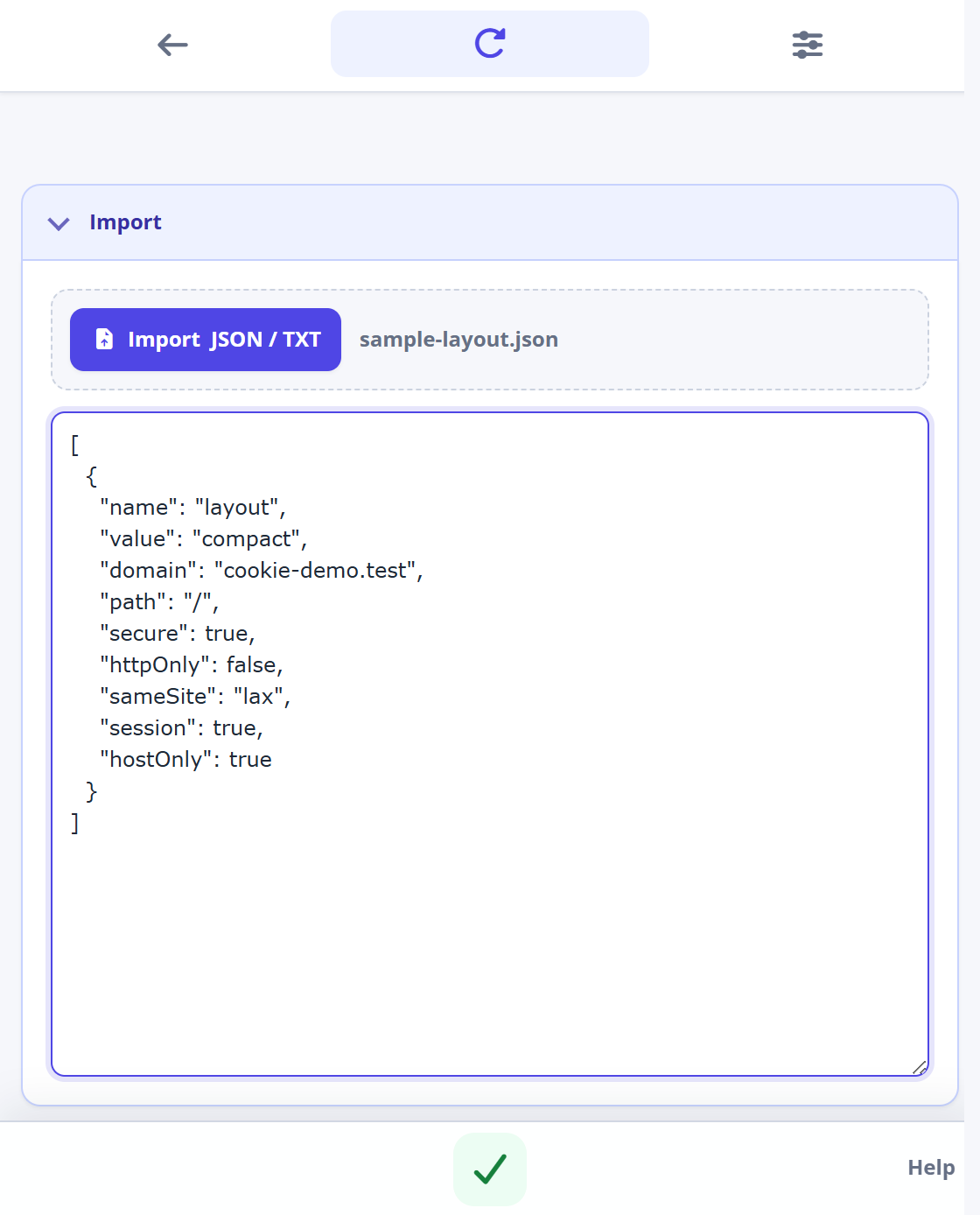
The filename extension does not convert the contents. Both pasted text and selected files are parsed using the supported formats.
3. Check the destination and attributes
JSON and Netscape records can supply cookie scope directly. Name=value pairs use the website URL currently shown in the editor: they become host-only session cookies with Path /, HttpOnly off and Secure enabled for HTTPS URLs. Perl::LWP records without a domain also use the current website. Check that URL before submitting.
Import can replace cookies with the same identity but does not delete unrelated cookies. Browser restrictions still apply. If an error stops the operation, cookies already written may remain, so inspect the list before retrying.
4. Verify your scenario
Reopen the cookie list, reload the test website and check the behavior you wanted to reproduce. A successful import does not prove an authentication session is valid; the server can revoke it independently. Sign in with your own test account again when needed.
When an import does not work
- Empty or unsupported input: start with a fresh export in one of the four supported formats.
- Malformed data: check JSON brackets and quotes, preserve Netscape tabs, and paste plain name=value pairs rather than a full HTTP request.
- File loaded but not applied: review the text and use the green checkmark.
- Wrong site: compare the target URL, domain and path, especially for formats that omit a domain.
- Expired or rejected cookies: inspect expiry, security flags and browser restrictions.
Start with one harmless preference. The attribute reference explains the fields, and the complete user guide covers the whole workflow.