
Install, pin, open.
- Open the EditThisCookie v3 Chrome Web Store listing in desktop Chrome. Choose Add to Chrome, review the requested access, then confirm Add extension.
- Open Chrome’s Extensions menu beside the address bar and pin EditThisCookie so its cookie icon stays within reach.
- Visit the website you want to inspect. Let it load, then select the extension icon. The popup loads cookies for that website.
- For your first experiment, use a site you own or are allowed to test, preferably in a separate Chrome profile. Start with a harmless preference and record its original value.
The Getting started page
On a fresh install, the reviewed build opens the extension’s settings. Its Getting started page brings together the website, store reviews, issue tracker, source and contact links. Select Options in the sidebar to configure the extension, then return to a website and open the cookie popup to work with its cookies.
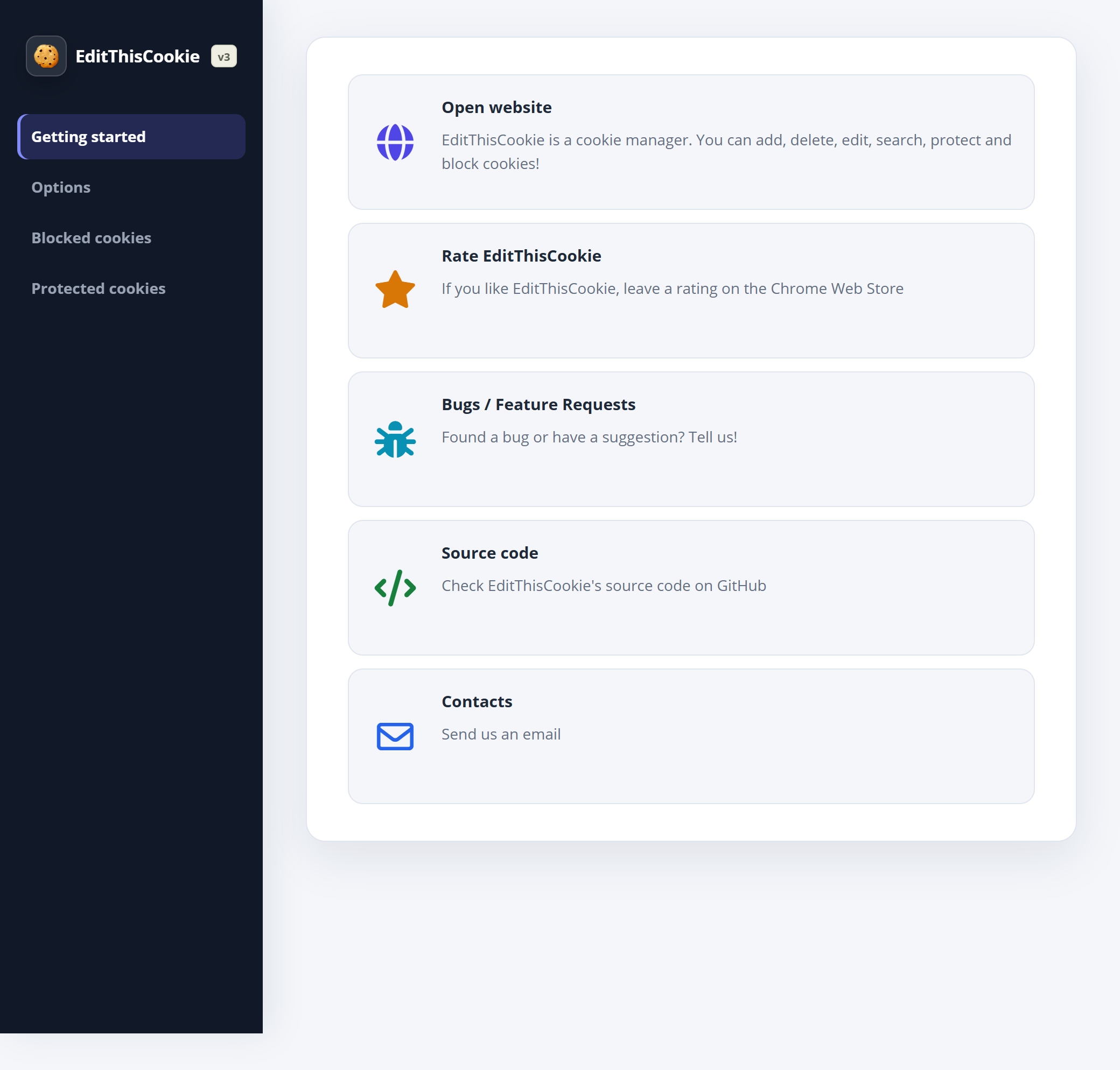
Use a regular website: browser settings pages and the Chrome Web Store restrict extensions. If the popup is empty, see the troubleshooting checklist.
Review permissions and extension data use before installing. The supplied build includes browsing activity reporting. The store listing describes the version currently published; its interface may differ from these screenshots. Chrome’s extension installation help covers browser-level setup.
Know what each control does.
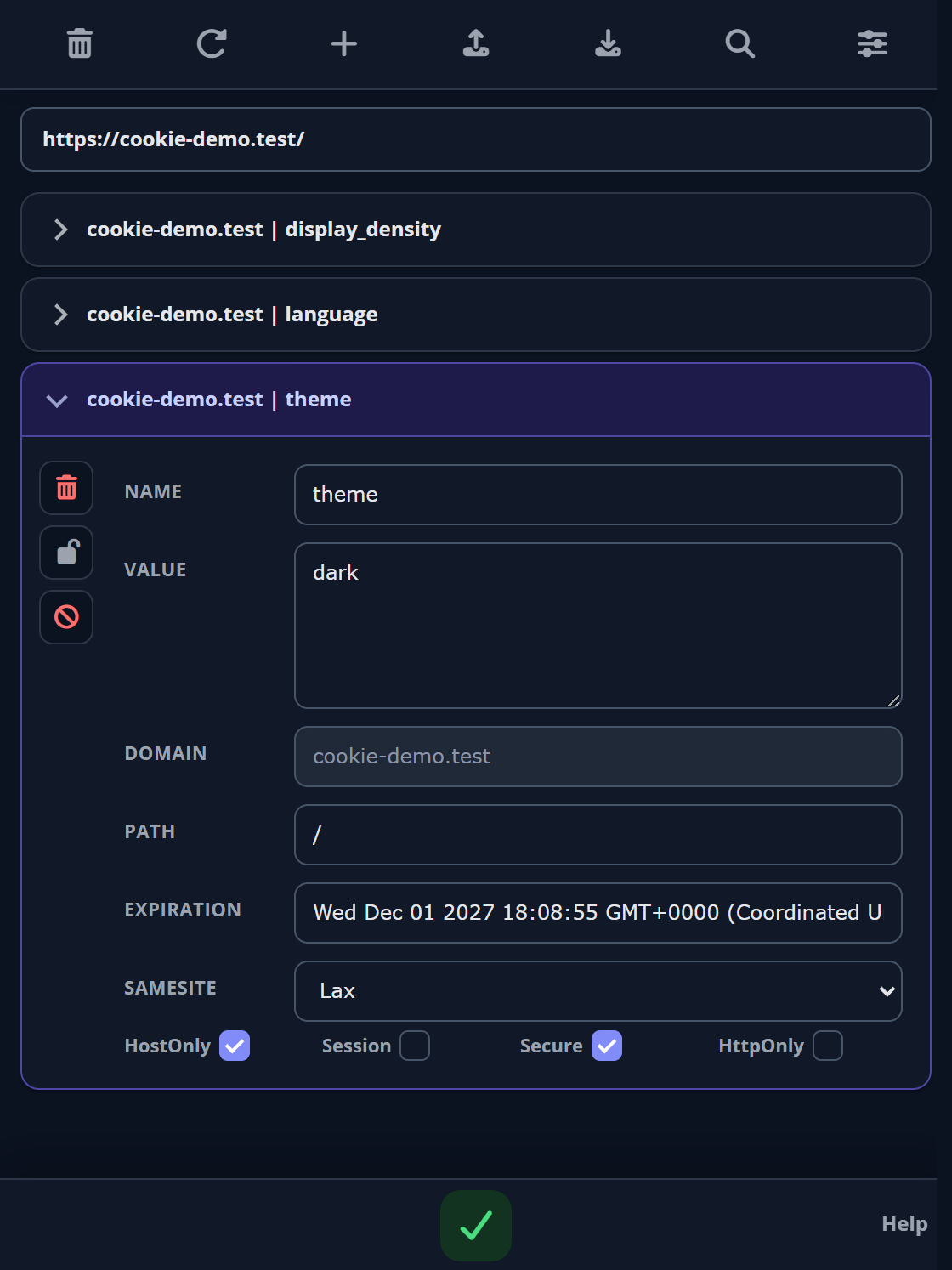
The toolbar sits above an expandable cookie list. Select a cookie row to reveal its fields and individual controls. The green checkmark below the list submits your edits.
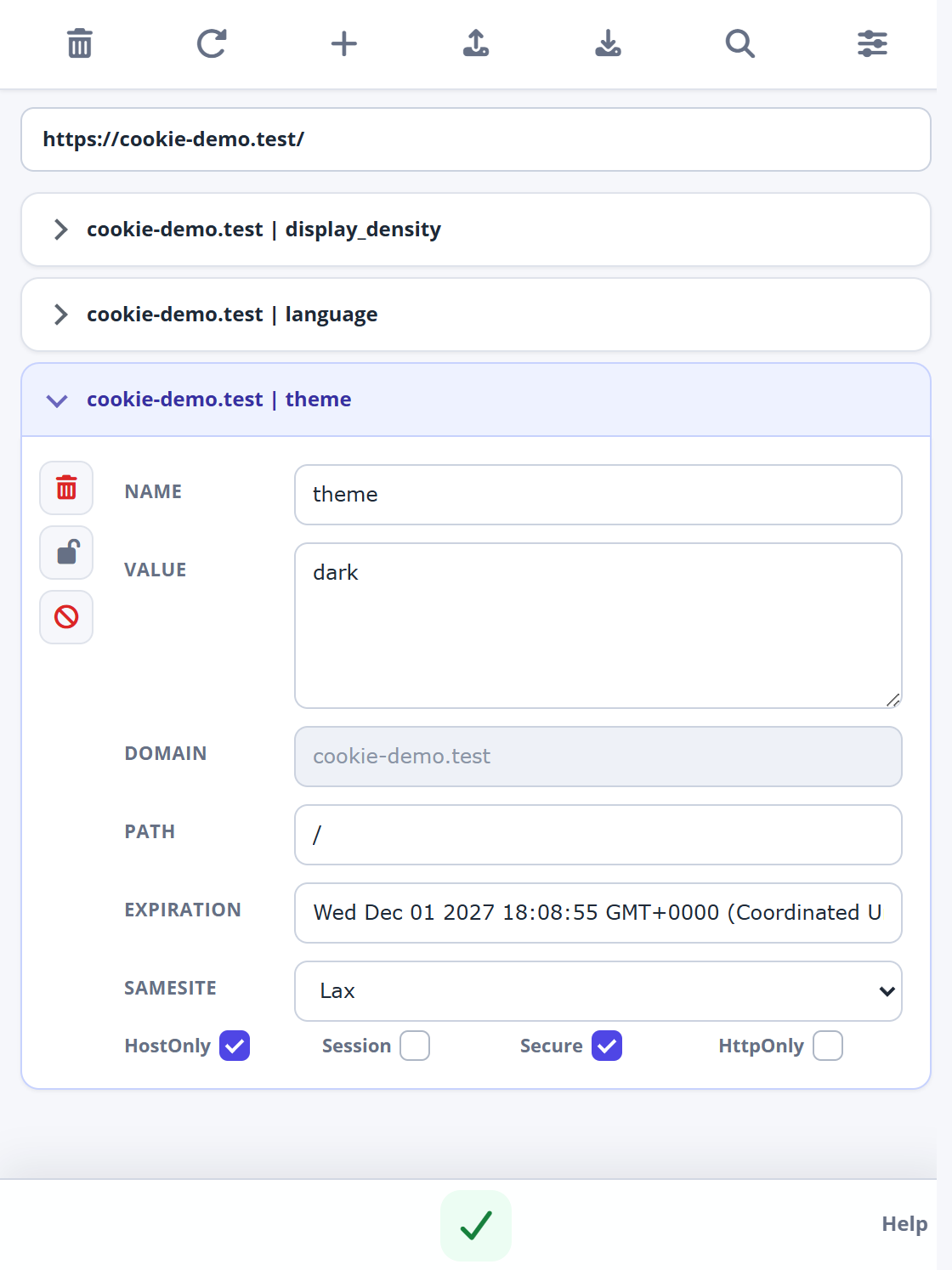
- Trash in the top toolbar
- Deletes the loaded website cookie list. For just one cookie, use the trash control inside that cookie’s expanded row.
- Circular arrow
- Refreshes the popup’s cookie view. In the new-cookie form it resets the form. It does not restore an earlier cookie state.
- Plus
- Opens the form for adding a cookie.
- Import · upward arrow
- Opens the import form. Paste cookie text or choose a JSON/TXT file, review its contents and submit.
- Export · download or copy
- Exports the loaded list. The action and icon depend on your Download or Copy to clipboard preference.
- Magnifying glass
- Opens search across cookie names, domains and values.
- Options · sliders
- Opens the extension’s settings area in a tab. Choose Options, Protected cookies or Blocked cookies there.
- Lock / red block symbol
- Inside an expanded cookie: toggle protection, or create a blocking rule. These have different effects; see protection and blocking.
- Green checkmark / back arrow
- The checkmark applies edits, a new cookie or imported data, depending on the current form. The back arrow returns from a form to the list.
Prefer text next to icons? Turn on Show labels next to icons in Options. The optional Block and delete all toolbar control appears only when enabled there.
Find the right cookie.
- Open the target website, then the extension.
- Select the magnifying glass and type part of a cookie’s name, domain or value. Matching is case-insensitive.
- Expand the matching row and check its domain and path. Cookies with the same name can belong to different scopes.
- Clear the search text to show all rows again. Esc in the search field clears the query and closes search.
It hides nonmatching rows. Export and Delete all still use the complete loaded cookie list, including hidden rows. Use the trash control inside a cookie to delete only that entry.
Add a cookie. Remove one when you’re done.
Add a new cookie
- Open the target site and select the plus icon.
- Enter Name and Value. Check the prefilled Domain, Path, expiry and security flags instead of assuming the defaults fit your site.
- For a temporary test preference, select Session. Otherwise choose a future expiration. The new form starts with Secure enabled; choose flags appropriate to your test site’s connection.
- Apply with the green checkmark. Find the cookie in the list and reload the site to test it.
Delete one or delete the list
Expand a cookie and use its own trash control to remove it. The top-toolbar trash control deletes the loaded list. Enable action confirmations in Options if you want a prompt before deletion; confirmations are off by default in the reviewed build.
Deleting sign-in cookies can log you out. A site can create a cookie again, and a protection rule can restore it. Remove protection before intentionally deleting a protected cookie. To keep a matching cookie from returning, use a narrow blocking rule.
Export a cookie snapshot.
- Open the website whose cookies you want to save and inspect the loaded list.
- Open the extension’s settings and select Options. Under Choose how to export cookies, select Download or Copy to clipboard.
- Choose the export format. JSON is a useful default for retaining the cookie fields in a snapshot. The reviewed build can also import its three text export formats.
- Return to the website, reopen the popup and select its export control. Download creates a file; Copy to clipboard lets you paste the text into your own editor.
- Check the saved contents and keep a note of the site and test state.
JSON
Use for a snapshot that you can paste back into the extension.
Netscape HTTP Cookie File
A tab-separated cookie file that can be imported here or used with compatible tools.
name=value pairs
A semicolon-separated list of names and values. Import uses the open website for scope; other attributes are not preserved.
Perl::LWP
Text using Set-Cookie3 records. The reviewed build reads these records back into cookies.
The default in the supplied build is Download + JSON. Search does not limit the export. Import detects the supported format from the contents; no separate import-format setting is required.
They can contain sign-in credentials. Use sample values for screenshots and support requests, and do not upload live cookie files to public repositories.
Import a file or paste cookie text.
The reviewed build accepts JSON, Netscape HTTP Cookie File, semicolon-separated name=value pairs and Perl::LWP. It detects the format from the contents.
- Save your current state if you need to restore it later. Open the matching website in your test profile.
- Select the upward-arrow Import control in the popup.
- Use the JSON / TXT file control to select a file, or paste cookie text into the text area. A selected file fills the area and displays its filename; it does not apply the cookies yet.
- Review the contents and destination. Click the green checkmark to import, then inspect the resulting cookie list and reload the website.
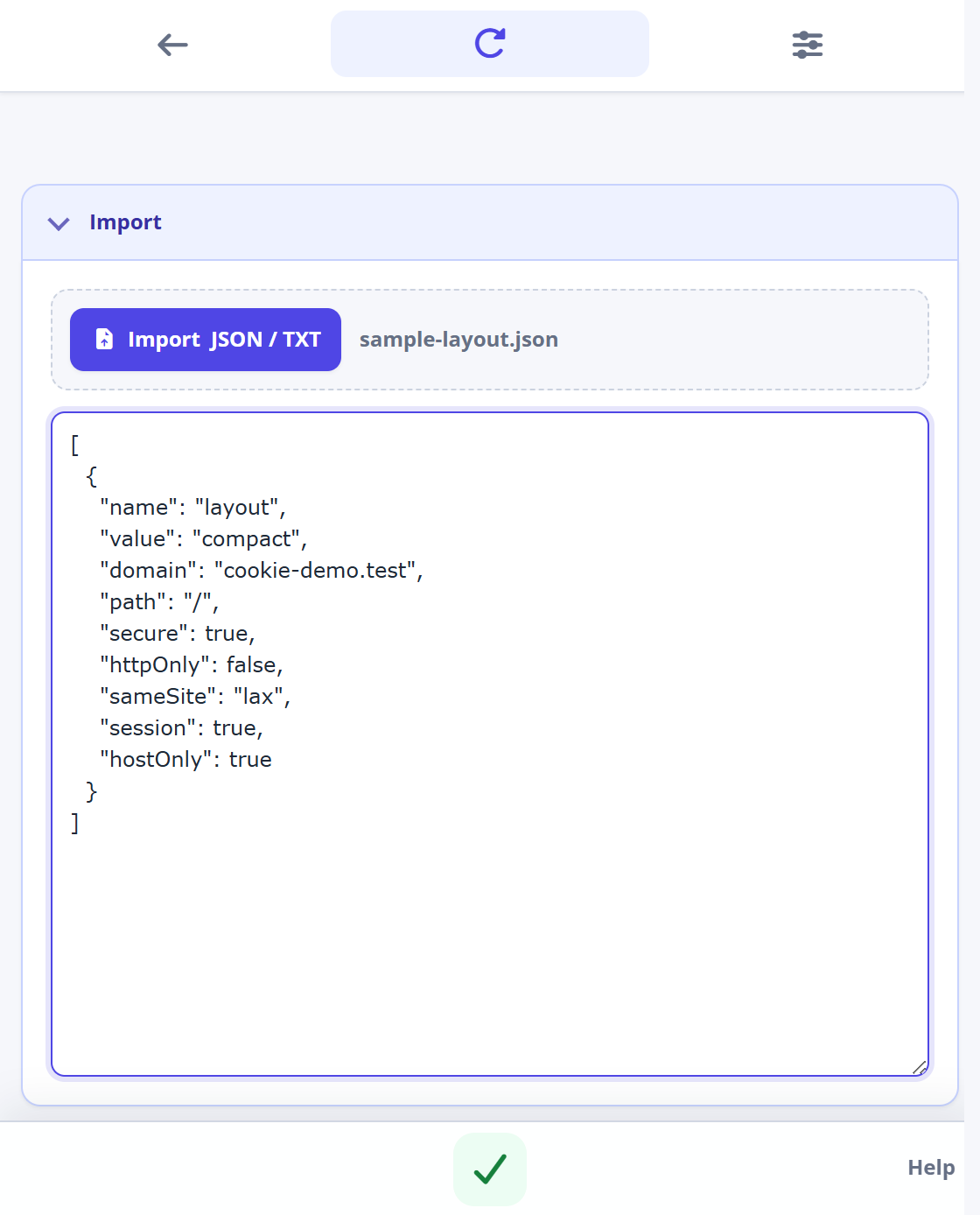
Choose the format for your data
- JSON: an array of cookie objects, or a single object. Start with an export from this extension for a complete example.
- Netscape: a tab-separated cookie file. Keep its columns intact; HttpOnly entries using the
#HttpOnly_prefix are recognized. - name=value pairs: for example,
theme=dark; language=en. These become host-only session cookies for the website currently shown, with Path/and Secure based on whether that URL uses HTTPS. The list does not preserve expiry or other original attributes. - Perl::LWP: text containing
Set-Cookie3:records. If a record omits a domain, the current website supplies it.
The file picker accepts JSON and TXT files; changing the extension of a file does not convert its contents. The supported text formats can be pasted into the same form.
An import can overwrite an existing cookie with the same identity. It is not a full reset: unrelated cookies are not removed. If it stops on an error, cookies already written may remain. Browser restrictions still apply, and an imported session may already be invalid on the server.
If the import fails
- Start with a fresh export in one of the four supported formats. Do not paste a filename, explanatory prose or Markdown backticks.
- For JSON, check brackets, commas and quotation marks. For Netscape, preserve the tab-separated columns. For name=value pairs, use just the pairs rather than an entire HTTP request.
- Check the website URL, domain, path, expiry and security flags. Formats without a domain need a valid target website.
- Inspect the stored cookies after submission or an error. Correct the input before retrying; use your snapshot if you need to restore the starting state.
For a focused walkthrough, see importing and exporting cookies.
Protect a cookie from changes.
Protection stores a cookie’s state and attempts to restore it when it is changed or removed. Use it when your test needs a particular value to stay in place.
- Set the cookie to the value you want, submit and reopen it.
- Select the lock control inside that cookie. The protected state uses a green closed lock and a green cookie name.
- Run your test, then inspect the cookie again.
- To stop protecting it, select the lock again. You can also open the settings area, choose Protected cookies, point to the rule’s row and use its delete control.
Remove protection before deliberately editing, deleting or blocking that cookie. Deleting a protection rule does not itself delete the cookie.
The reviewed code skips browser events marked expired or evicted. Protection does not make a server session valid or prevent the cookie from being sent to its website.
Block a cookie, then remove the rule.
- Expand a cookie and select its red block symbol.
- Choose which criteria to include: Domain, Name and optionally Value. Keep the domain and name selected for a narrow starting rule.
- Choose Add this rule. Matching existing cookies are removed and the background handler removes matching cookies when they are set again.
- Open Blocked cookies in the settings area to review the saved rules. To unblock, point to the relevant row and choose its delete control.
- Reload the website or repeat the action that normally sets the cookie. Removing the rule does not recreate a cookie that was already deleted.
Included criteria must all match; omitted criteria impose no restriction. Blocking uses regular-expression matching across stored cookies. A name-only rule can match on other domains too, and partial patterns can match more than you expect.
Add a precise rule from settings
In Blocked cookies, choose Block cookie, fill the criteria and use the accept checkmark (or Enter). Empty fields mean “any”; at least one criterion is required. For an exact-name example, ^theme$ matches theme, not theme_backup. A domain pattern such as ^cookie-demo\.test$ matches that exact example domain; adjust it to the domain actually shown, including any leading dot. Use valid regular expressions; a malformed pattern will not match a cookie.
To change an existing rule, remove it and create the replacement. The optional Block and delete all toolbar action creates rules for the loaded cookies; enable it in Options only when you intend that broader action. Avoid overlapping protection and blocking rules for the same cookie.
Blocking removes matching cookies after they are set. It is not a network-request blocker or a guarantee that a website cannot track activity.
Choose your preferences.
Select the sliders control, then choose Options in the settings area. Most checkboxes and menus save when changed. The maximum-age control has its own save button.
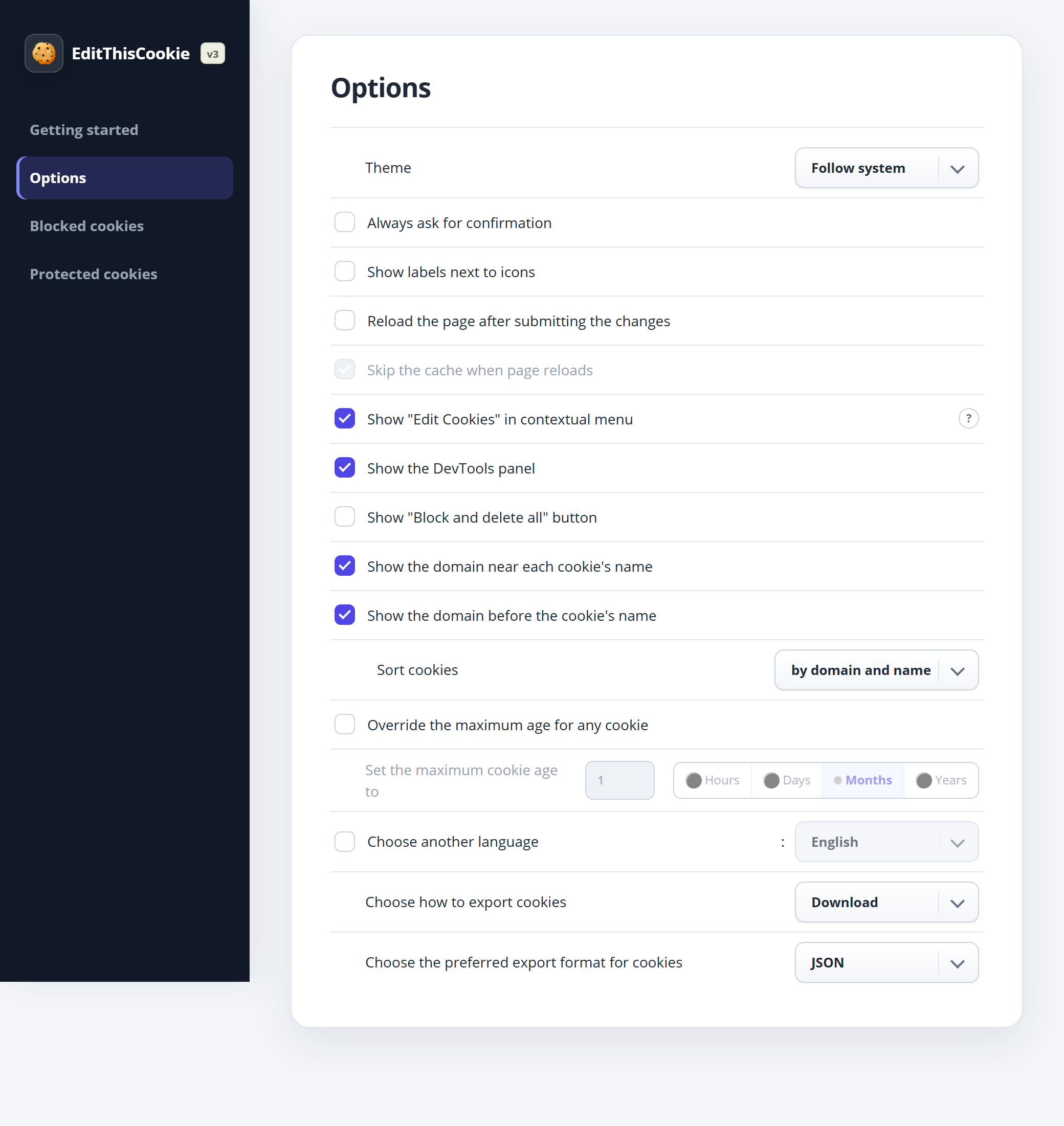
- Confirm actions
- Enables confirmation prompts for actions such as deleting cookies or rules. Off by default.
- Show labels next to icons
- Adds text labels to toolbar controls. Useful while learning the interface.
- Reload after submitting
- Reloads the website after editing cookies. The associated skip-cache option becomes available when reload is enabled. Reload is off by default.
- Context menu & DevTools panel
- Controls the page context-menu entry and the EditThisCookie DevTools panel. See other ways to open the extension.
- Block and delete all
- Shows the optional bulk-blocking toolbar control. It is hidden by default.
- Domain display & sorting
- Choose whether domains appear, whether they come before names, and whether sorting uses domain plus name or name alone.
- Custom language
- Enable the custom-language option and select one of the available languages. Reopen the popup to use the chosen labels.
- Export action & format
- Choose Download or Copy to clipboard, then one of the four formats described in Export a snapshot.
Light, Dark or Follow system
- Open Options and find Theme at the top.
- Choose Light for a light interface, Dark for a dark interface, or Follow system to use your device’s color preference. Follow system is the default.
- The settings page updates immediately. Reopen the popup or an already-open DevTools panel to load the selected preference there.
When Follow system is selected, the open interface responds to changes in the device’s light/dark preference. The same setting is used by the popup, settings pages and extension DevTools panel.
Limit maximum cookie age
Enable the maximum-age option, enter a positive amount, choose a unit and use its save button. Saving scans existing cookies and shortens applicable expiration dates; future cookie changes are also checked. This setting applies beyond the current website.
Inspect the actual resulting expiry after changing this preference. Turning it off stops further shortening but does not restore original expiration dates. Keep a snapshot before using it on a test profile. In the supplied v3.0.5 source, the Days option uses an incorrect conversion value; use Hours for a predictable interval until that extension issue is fixed.
Use the context menu or DevTools.
From a website’s context menu
Enable the context-menu option, right-click a regular web page and choose EditThisCookie. This opens the editor in a browser tab. Check the website URL shown above the list before editing.
Inside Chrome DevTools
- Enable the DevTools-panel option in the extension settings.
- Open DevTools for the target website and select EditThisCookie. Look in the tab-overflow menu if it is not immediately visible. Close and reopen DevTools if you just enabled the panel.
- Inspect the table. Editable text cells submit when focus leaves the field; checkbox changes apply directly. This panel does not use the popup’s green submit checkmark.
For an independent check, use Chrome’s built-in Application → Storage → Cookies view and select the site’s origin. Chrome documents that view in its cookie inspection guide.
Find the cause. Recover your test.
The cookie list is empty
Check that you are on a normal website and that the extension has site access in Chrome’s extension Details. Wait for the page to finish loading and refresh the popup. Some sites set cookies only after an interaction; others use different storage. Clear the search query too.
The cookie I added is missing
Check the domain, path, expiry and flags. A past expiration removes a cookie, and browser restrictions can reject incompatible flags. Inspect Blocked cookies for a matching rule. Compare with a working cookie from your own site.
My edit changes back or a deleted cookie returns
The website can write it again. Check Protected cookies for a saved value being restored, and confirm you edited the correct domain and path. Remove protection for a normal edit. Use a narrow blocking rule only if you intend to remove future matching cookies.
Import says it worked, but I am not signed in
Verify the stored cookie first. A server can revoke sessions independently, and authentication may also depend on other state. Sign in again with your own test account; importing a cookie is not a way to renew an expired session.
Export downloaded a file instead of copying
Download is the default. In Options, change Choose how to export cookies to Copy to clipboard, return to the site and export again. Import supports pasted text or a selected JSON/TXT file in the four supported formats.
A website stopped working after I added a rule
Open Blocked cookies and remove the relevant rule. Check for a name-only or overly broad regular expression. Remove overlapping protection if necessary, reload the site and sign in again. Removing rules does not restore cookies already deleted.
I selected an import file, but the cookies did not change
Selecting a file only loads its text for review. Check the contents and click the green checkmark to apply it. If an error appears, correct the data and inspect which cookies were saved before retrying.
The popup is still using the old theme
Reopen the popup after changing Options → Theme. If Follow system is selected, its appearance depends on the device’s color preference. Choose Light or Dark explicitly to keep one appearance.
How do I restore my original setup?
First remove rules that would override your restoration and disable maximum-age shortening if it affects the test. Restore recorded values or import your saved JSON. Imports do not remove extra cookies, so delete any cookies you created for the experiment separately. Without a snapshot, sign in or set your preferences again on the website.
How do I disable or remove the extension?
Open Chrome’s Manage extensions page. Toggle EditThisCookie off to disable it, or choose Remove to uninstall. This stops its rules from running, but does not undo earlier cookie edits or bring back deleted cookies. See Chrome’s extension management help.
A little more help.
This guide follows the supplied EditThisCookie (V3) 3.0.5 source and its real interface. The screenshots use made-up cookies in a separate test profile. Labels may vary with the language and installed release.
- A focused walkthrough of editing cookies
- More about cookie snapshots and JSON import
- A closer look at cookie attributes
- Extension source on GitHub
Still stuck?
Share your browser version, extension version and steps to reproduce the problem. Use sample cookie values in your report.
Get help